 butai
butai

Left · fleet
Find the agent that needs you
Booth brings every machine, project, and agent into one tree. See who needs you and open their conversation.
butai · Japanese for “the stage”
A terminal multiplexer built for working with AI agents.
Keep agents, code changes, and running processes together, even over SSH.
$curl -fsSL https://butai.dev/install.sh | sh
See it running
One Rust binary · Linux and macOS · MPL-2.0 · read it first
Okumura Masanobu, 1740 · Cleveland Museum of Art, CC0
The workbench
Your agents, code and running processes, together. Scroll to explore.
Booth · fleet overview
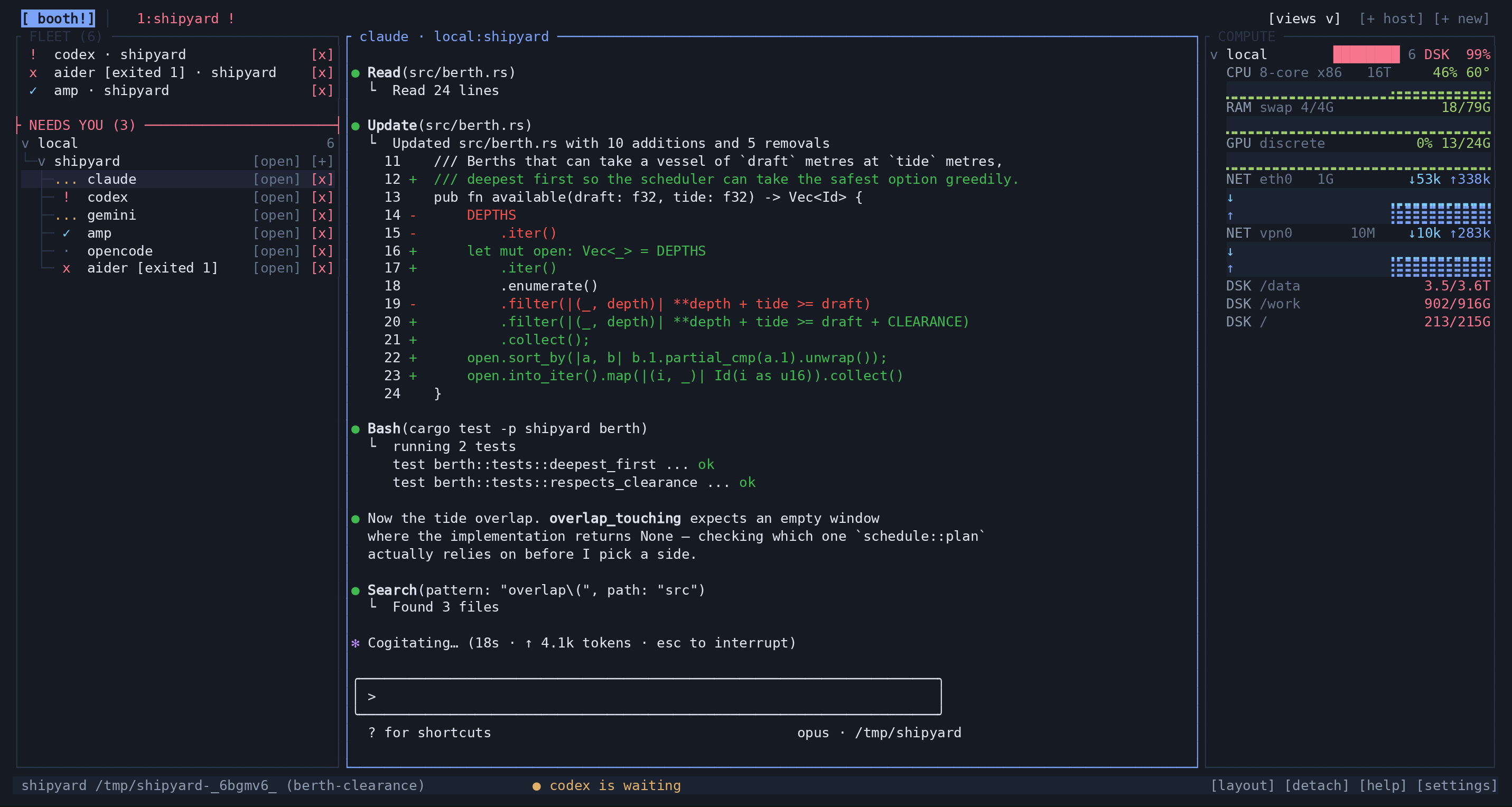
Scroll to explore the columns
Booth
Start in Booth to see your projects and agents across machines. Select an agent to read its conversation, or open a project tab to focus on that project.
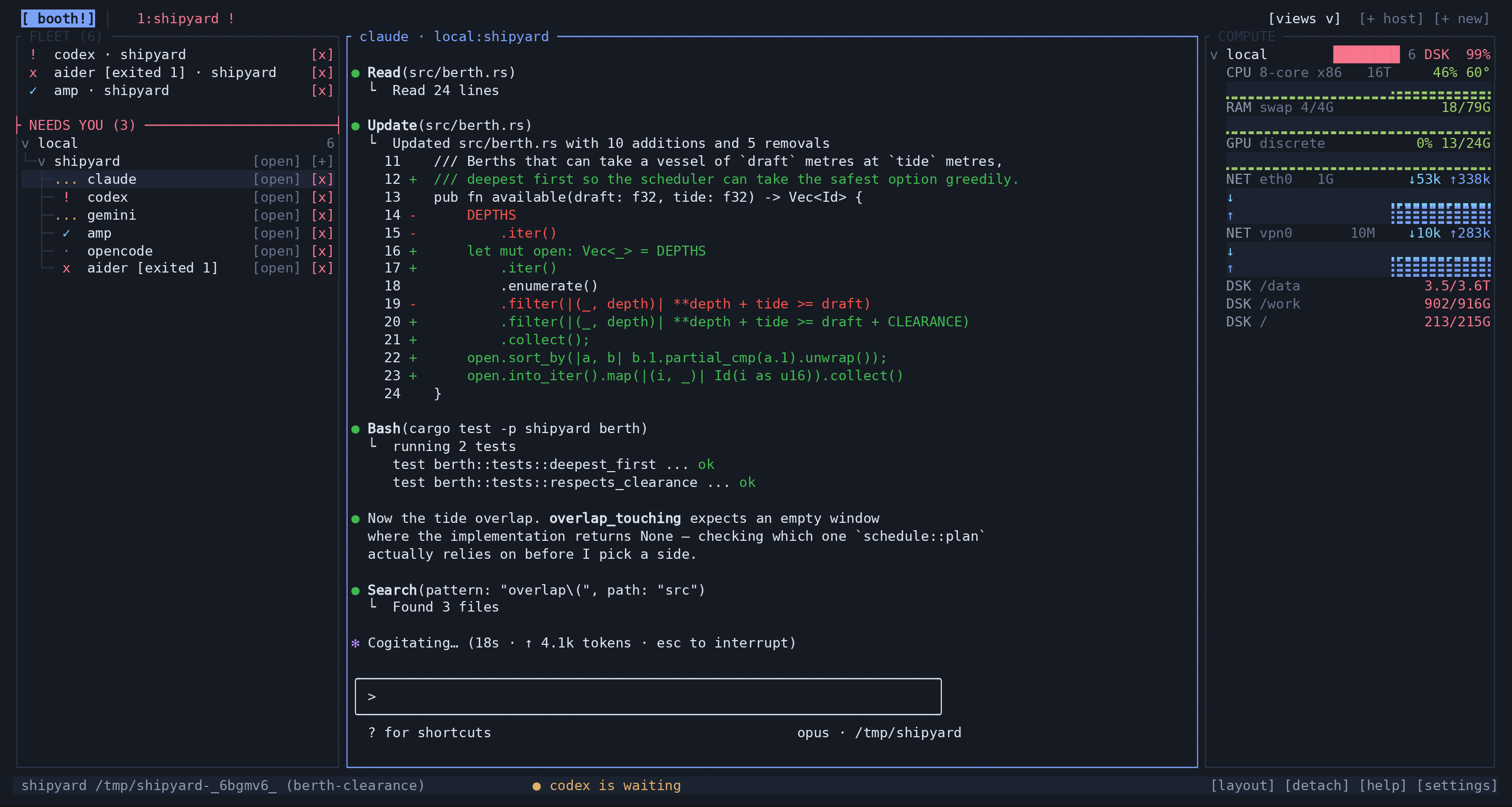
Left · fleet
Booth brings every machine, project, and agent into one tree. See who needs you and open their conversation.
The middle · conversation
Read the selected agent’s conversation while keeping the whole fleet in view.
Right · machines
Expand a machine to see its CPU, memory, and other system readings.
Where to click
Click a project tab to open its workbench. Its views focus on that project.
Agents
The agent conversation stays in the middle. Agents and built-in terminals sit on the left, with Git changes on the right, so you can follow the work without switching windows.
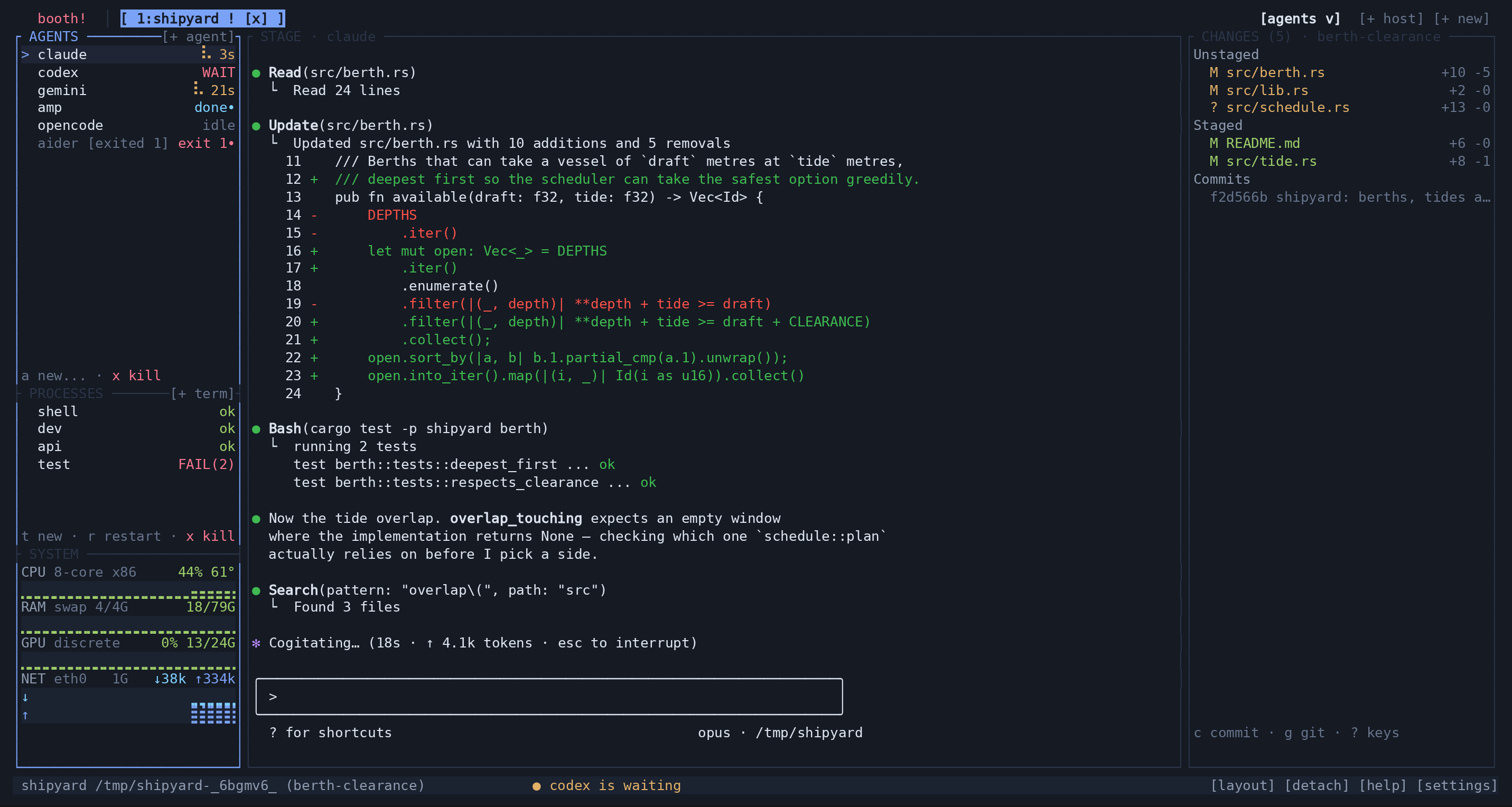
Upper left · agents
See who is working, finished, or waiting. WAIT means an agent needs your input.
The middle · stage
Read the conversation and reply to your agent. The rails stay in place around it.
Right · changes
Your Git changes are always beside the work. Review, stage, and commit from here.
Lower left · processes
Run commands, servers, and tests in built-in terminals. Open any terminal to see its output.
Bottom left · system
CPU, memory, and network activity, right beside the agents using them.
Where to click
Click the view name at the top right. It opens the Views menu.
Views
Click the current view name at the top right to open this menu. Choose Files, Git, or Docker to explore another part of the same project.
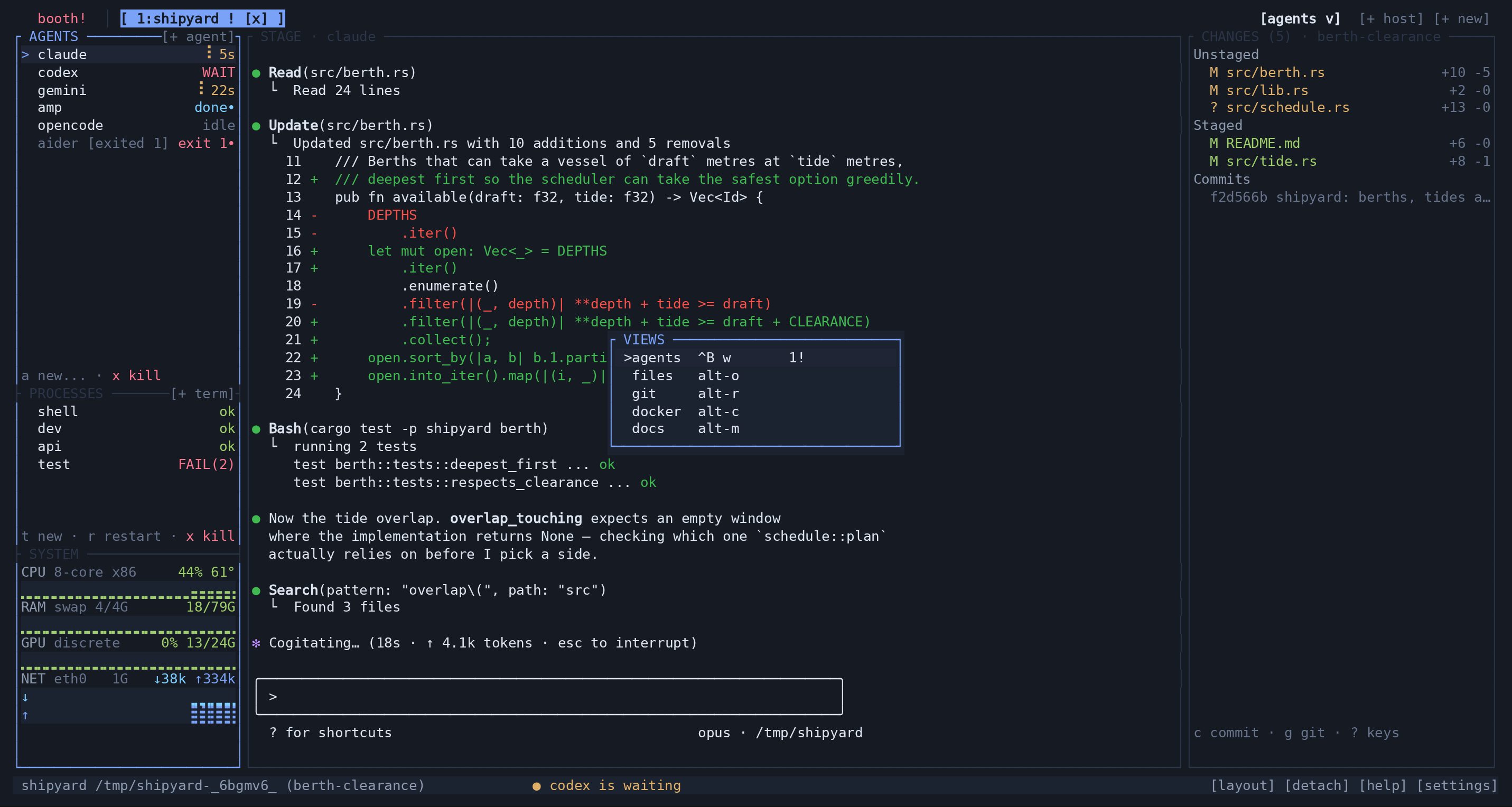
The views menu
Agents, files, Git, Docker, docs, and usage. Pick the view you need for this project.
Where to click
Choose Files to browse folders and read code.
Files
Folders open in columns on the left, and the selected file opens on the right. Your path stays visible as you move through the project.
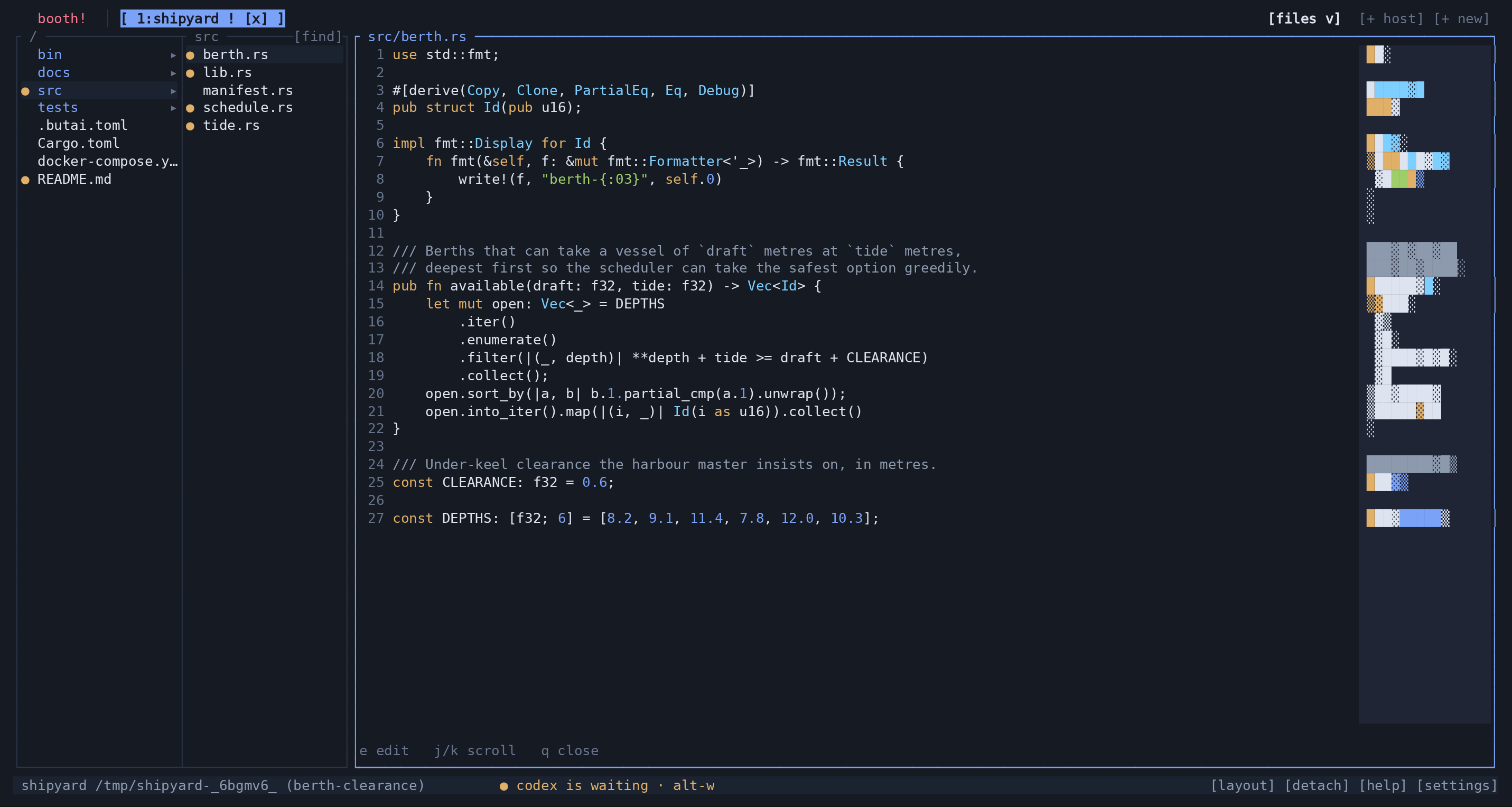
Left · folders
Each folder opens another column. The path you followed stays in view.
Right · file
Open a file while keeping the directory trail beside you. The minimap shows your place in the file.
Where to click
The same button now says Files. Click it to choose another view.
Where to click
Choose Git to browse branches and commit history.
Git
Git brings your working tree, branches, and commit history into one view. Open a commit to read its changes beside the history.
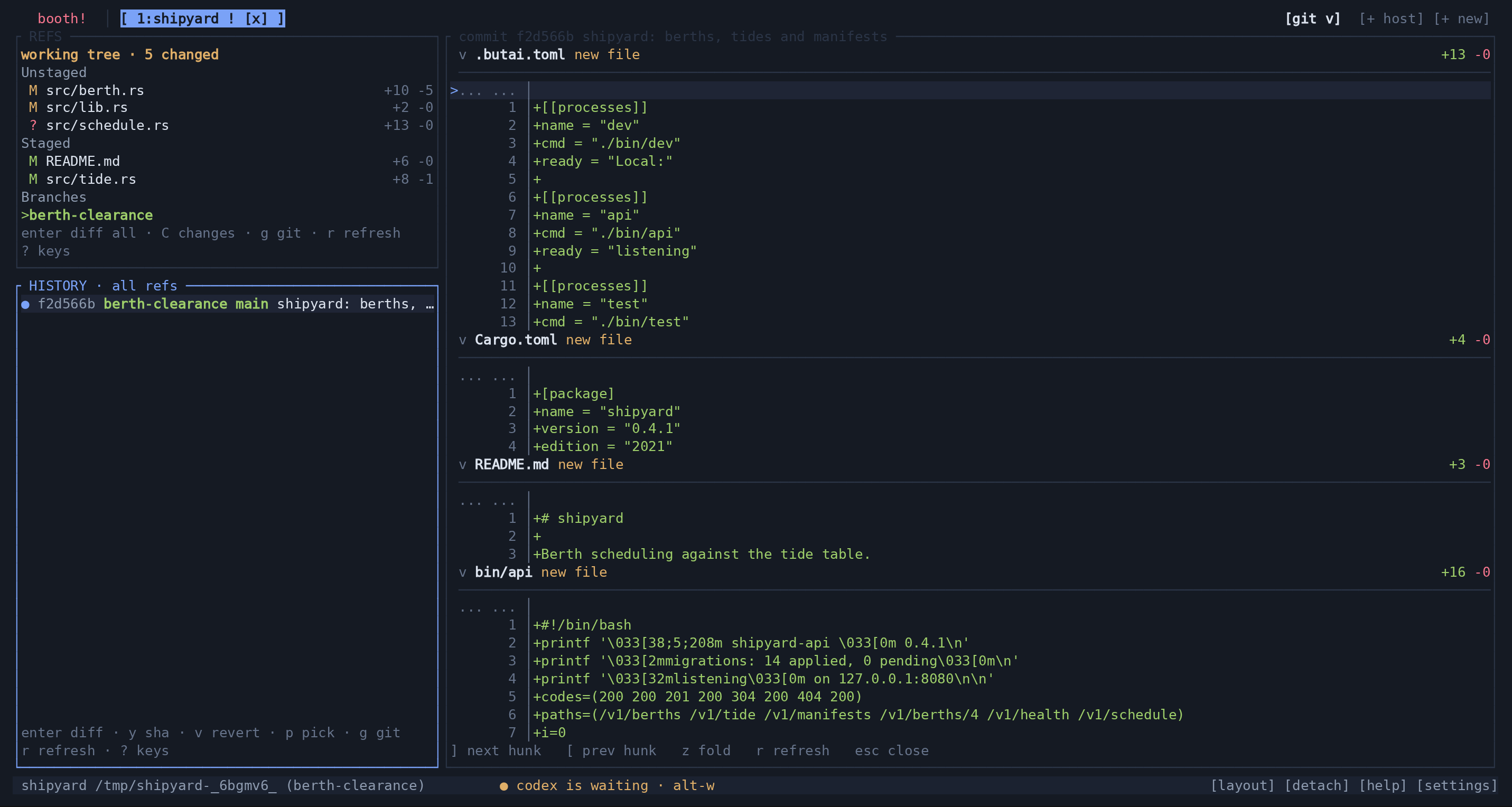
Upper left · refs
See your working tree and branches. Choose a branch to browse its history.
Lower left · history
Browse the commit history. Open a commit to see what it changed.
Right · commit
The selected commit’s changes appear here, with the history still in sight.
Where to click
Click Git at the top right to return to the Views menu.
Where to click
Choose Docker to see this project’s containers and logs.
Docker
Find this project’s Compose containers on the left. Select a container and open its logs on the right to see what the service is doing.
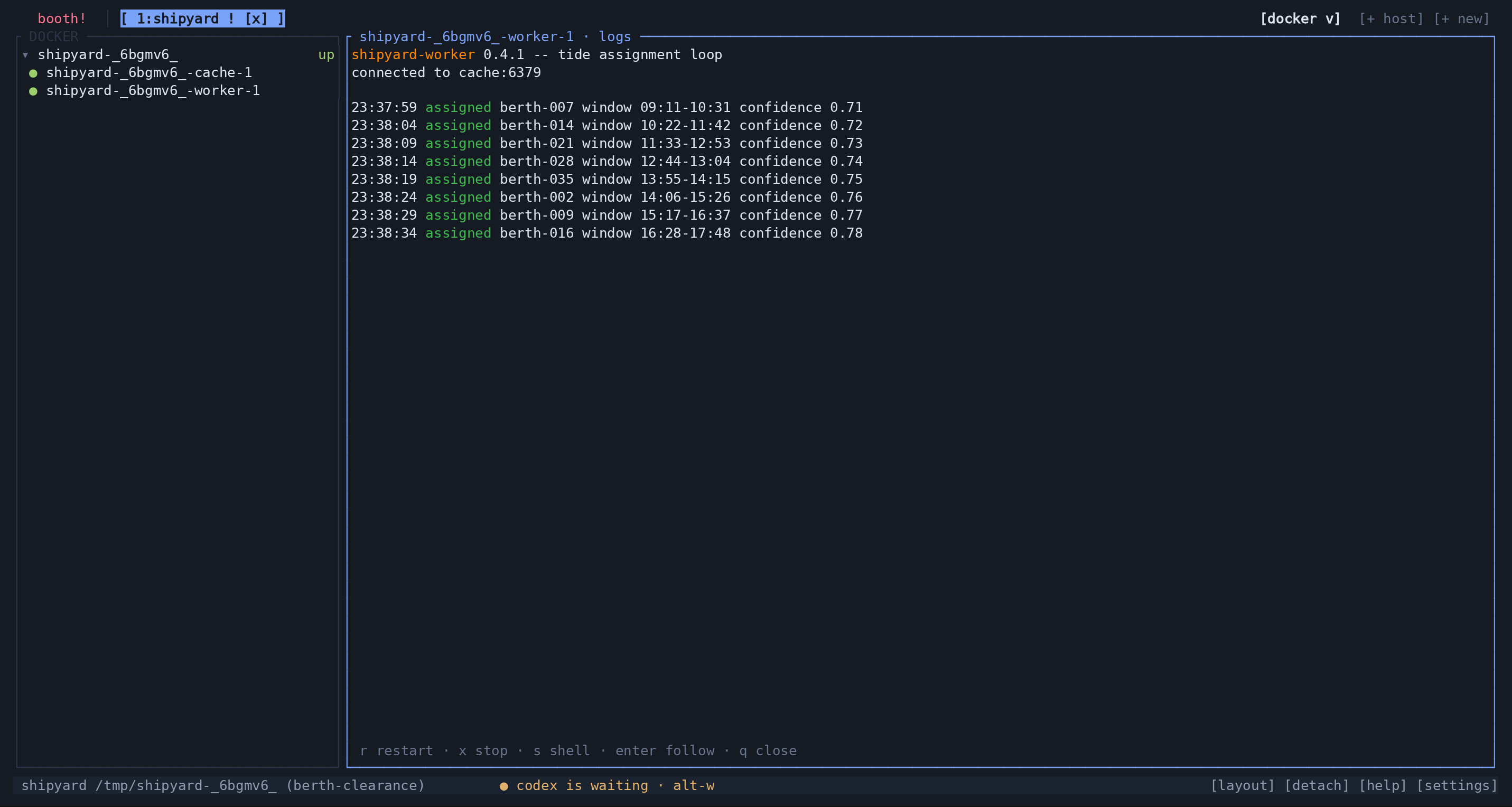
Left · containers
See the Compose containers that belong to this project and check their status.
Right · logs
Select a container and open its live logs without leaving the workbench.
Captured from Butai with the Shipyard demo. Latest stable release.
Every machine you own
Add a remote machine from Butai. Its projects join your tabs over SSH.
Build on Butai
Caliper uses Butai for agents, files and Git inside its CAD interface.

Relayed to the daemon's /v1/*: file tree, diffs, staging, commits, branches, agents, processes.
The framed protocol: panes arrive as cells, so Caliper never wrote a VT emulator.
Everything else — the API is documented.
Swipe for more tools. Tap a dot for details.
Try it out
Install the latest stable release of Butai and open your first workbench.
The command below is for Linux and macOS.
$curl -fsSL https://butai.dev/install.sh | sh
Source on GitHub
Read it first, or get the latest stable release and check the hash.
