The workbench#
A guide to the screens, sidebars, and menus in the terminal client. For the complete keymap, see Keyboard shortcuts; for Git operations, see Git.
Projects open in tabs. Select an item in a sidebar to show it on the center stage. Available actions appear below each list.
The frame#
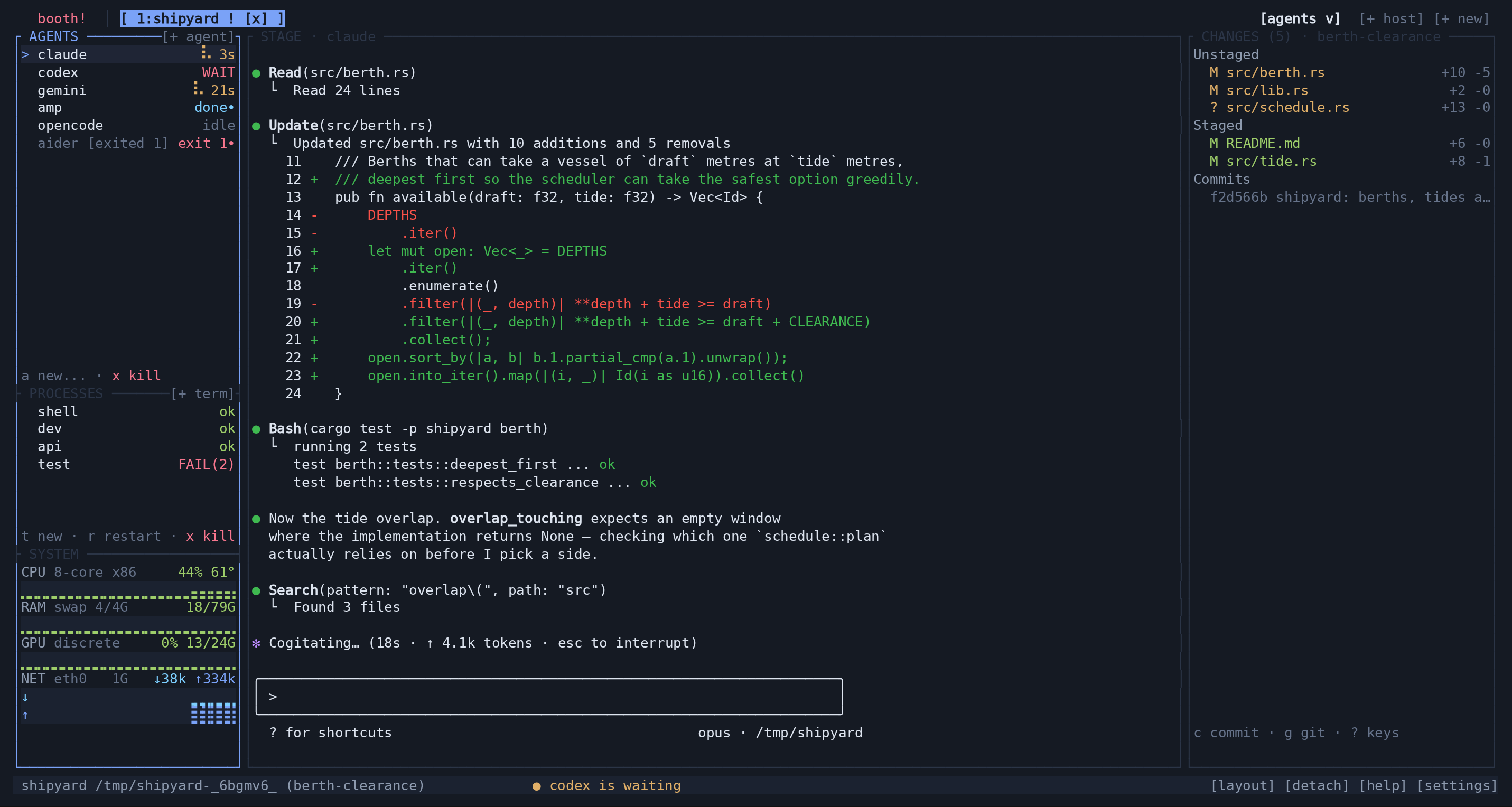
Three rows of structure: a tab bar on row 0, a band of boxes between, a footer on the last row. The band is carved left to right — left rail, stage, right rail — and only the middle of it ever changes.
The tab bar#
Left to right: the booth chip, a rule, then one chip per workspace across
every connected machine, then the spaces button, the machines button and
[+ new] hard against the right edge.
The booth chip is always drawn, at every width: it is the only pointer route
back to BOOTH, because the spaces menu deliberately does not carry it. It reads
[ booth ] when BOOTH is up and booth otherwise, with a ! when anything
anywhere is waiting.
The │ after it is doing work. BOOTH is a peer of the workspaces rather than one
of them — it is every project on every machine, and they are one project each —
and on a row of look-alike chips that distinction was carried by nothing but a
space. It is dropped below 52 columns, where two columns of rule are two columns
of project name.
A workspace chip is 1:name, prefixed with its machine (2:gpu-box:infra) only
when more than one daemon is connected — with one machine every chip would carry
the same word. A trailing ! means an agent in that workspace is waiting or has
a question. The active chip is bracketed and bold and accent-coloured,
because colour is the first thing a screenshot or a monochrome terminal loses,
and it is the only chip that carries [x]. Pressing [x] opens the same
confirmation alt-x does.
The machines button is [+ host] on a single-machine client and [N hosts] past
one. One control, not two: there used to be a count and a [+ host] beside it
and both opened the same MACHINES picker, which is where you add a machine and
where you let one go. At one machine the button is an offer and 1 host would
label a fact that needs no label; past one it is the roll call, which is the
thing worth pressing.
When the workspaces outgrow the row#
The chips get the columns the rest of the bar does not want, and no more. The
spaces button, the machines button and [+ new] are reserved first; the chips
scroll inside what is left rather than pushing anything off the row. Opening a
twelfth project therefore cannot take away the button that opens a thirteenth.
The strip scrolls to keep the workspace you are in whole, and only that far, so
switching between neighbours does not shuffle the row. What does not fit is
reached through [<] and [>] at the strip's right end: each one selects the
nearest workspace the strip is not showing, which is also what brings it into
view. They are the pointer's spelling of alt-< / alt->, and each is drawn
only when there is something that way. A chip at the strip's edge is truncated
where the drawing truncates it and is clickable across the part you can see.
Below about 52 columns the reservation is dropped instead and the chips take the
whole row: on a bar that narrow the tabs are the only thing left worth drawing,
and [+ new] is a second spelling of a key. The same goes for the arrows, which
need a strip wide enough to still show a chip once they have taken their end of
it — narrower than that, the row reads as it always did.
The spaces button#
One control on the tab bar, [agents v], that names the space you are in and
opens the menu of all of them. alt-space is its key, and alt-, / alt-.
still walk them without opening anything.
The menu lists Agents, Files, Git, Docker, and Docs.
The counts are in the menu and nowhere else. They used to ride the button, and before that a rail down the left edge, on the argument that a signal from a space you are not looking at needs somewhere that survives every page. It does not need the bar to do it: a waiting agent already says so on its rail row, on its workspace chip, on the booth chip, in the footer, in BOOTH's fleet and through the bell. What is genuinely given up is narrower than it sounds and worth stating — a branch that has fallen behind is invisible on pages that draw no CHANGES rail. Open the menu or the Git view itself.
| space | what its row says |
|---|---|
| agents | n! in danger when n agents are waiting |
| git | n! in danger when n files are conflicted, else ↓n in amber when the branch is behind |
| files, docker, docs | nothing — "there is stuff here" is noise |
The button's ink is as wide as the space it names — [git v] is seven cells
and [agents v] is ten — but the columns are reserved at the widest and the ink
is right-aligned inside them. So the chip strip does not reflow when you switch
space, and no button is padded to make that true: the blank sits outside the
brackets, where it reads as the gap before a control rather than a hole inside
one. On a bar too narrow to reserve them the button is dropped whole rather than
shrunk, on the same terms as the machines button and [+ new] — the chips say
where you are, and this is a pointer spelling of keys that already exist.
BOOTH, SETTINGS and HELP have no row. None of them is a view of a workspace, so
all three take the whole width and are left the way you arrived — and while one
of them is up the button reads views rather than claiming you are in a space
you are not.
The space is the project's, not the window's#
Each workspace remembers the space it was last on, and going to a workspace goes
to that space. Open butai on GIT, switch to caliper — which was on FILES — and
switch back, and butai is on GIT again. It survives a detach and a restart,
because it is written to [views] in the client's config, keyed by the machine
the project is on and the directory it is open in: two machines with the same
path checked out are two workspaces and keep two answers. See
Configuration for the table and what bounds it.
This follows from what a space is. Every row of the menu above is a way of
looking at one project, so which way you were looking at a project is a fact
about the project — it was only ever a fact about the client because there was
one view.page and every tab shared it.
The three that are not views of a workspace are exactly the three left out. A workspace never remembers BOOTH, SETTINGS or HELP, and going to a workspace while one of them is up does not move the screen off it: BOOTH spans machines, SETTINGS is about this client and HELP is about the program, so none of them is answering the question "which project". Choosing a workspace chip still leaves BOOTH, as it always has — that is a choice about where to be, and the space you land on is then the one that project was left on. A project butai has not seen before keeps whatever space you arrived with.
The rails#
The left rail is 28 columns by default and holds three stacked sections — AGENTS, PROCESSES, SYSTEM. The right rail is 38 and holds CHANGES, which is the whole of its interior. Both are clamped to 12..60 and resizable; if the two together would leave the stage under 20 columns, both drop to zero rather than squeezing it.
Each left-rail section gives its last row to its verbs when it has three rows to spare. SYSTEM yields entirely below 12 rows of rail, and in zen. Left alone, PROCESSES takes two fifths of what is left after SYSTEM and AGENTS takes the rest, because the agent list grows with the work while processes is usually a shell and a server.
All three lists scroll: the cursor is kept on screen by scrolling only as far as it must, and the same arithmetic answers the hit test, so the row under the pointer is the row that gets selected.
The stage#
One pane, in the middle, whatever the cursor last staged. It is the one region the daemon renders — a pane is a program's bytes on a PTY and turning those into cells needs a terminal emulator — and everything else on screen is JSON this client drew. While the stage has the keyboard, every key is the program's.
Full-width pages (BOOTH, FILES, DOCS, GIT, DOCKER, SETTINGS, HELP) take the rails' columns and put something of their own there. DIFF does not: a diff is what is on the stage rather than somewhere you navigate to, and the CHANGES rail beside it is how you walk to the next file.
When the stage loses its machine#
The daemon going down, and a forwarded socket dying, both arrive as the pane connection ending. The last frame stays on screen, dimmed to one faint colour, under a card:
gpu-box went away — reconnecting. The card shows how long the connection has been down.
The machine is named — the daemon for the local one, which has no host to
name. The age counts from when the link went, not from the last retry, because
4s and 2h10m call for completely different reactions. The third line appears
only when there is something behind the card; a stage opened straight onto a
machine that is already down has no photograph to point at, and says so by
leaving the line out.
The dimming is the larger half of the message: a screen flattened to one colour reads as inert from across the room, without a word of the card. The connection is re-opened once a second until it answers, and the notice goes when it does.
A pane that merely exited is not this. That leaves an ordinary empty stage — there is genuinely nothing to show. The difference comes off the wire; see The butai client protocol (version 1).
The footer#
Three zones, all measured before any of them is written, so they cannot overwrite each other on a narrow terminal.
- Left —
name host:/path (branch), or justbutaiwith nothing open. The host qualifier appears only with more than one machine. The armed prefix is appended in bold, because until the next keystroke the whole keyboard means something else. In LAYOUT mode this zone becomes the layout HUD instead. - Middle — the transient flash if there is one, otherwise
● name is
  waiting
for the first agent that wants you. On a page that has hidden the AGENTS rail it reads● name is waiting · alt-w, because there the footer is the only thing on screen naming which agent is blocked. Cut down to fit, and on a phone-width screen down to a bare●. - Right —
[layout] [detach] [help] [settings].[help]and[settings]name pages rather than actions, so they are lit while you are on them and a second press is the way back out.
Where focus is, and how it moves#
The keyboard is in exactly one place: Agents, Processes, Changes,
AllAgents (BOOTH's fleet), Refs and History (GIT's two lists), or Stage.
It starts on Stage. That is deliberate: a workbench that opens with the
keyboard pointed at a rail turns the first thing you type into commands —
echo $PATH would open the agent picker on the a and spawn something on the
e.
tab |
cycle: AGENTS → PROCESSES → CHANGES → stage → AGENTS. GIT answers tab itself; BOOTH's fleet leaves to the stage |
alt-a alt-p alt-g alt-w |
straight to AGENTS, PROCESSES, CHANGES, the fleet |
alt-esc |
off the stage, onto AGENTS (on BOOTH, onto the fleet) |
enter |
on a rail row, stage it; anywhere else, move onto the stage |
| click | anything selects; a second click on the same row stages it |
Bare letters only work with the cursor off the stage. The Alt layer and the
prefix always reach the workbench, from inside a running program included —
that is what they are for. An Alt key the workbench does not bind falls through,
so alt-b and alt-f still move by words in readline.
Spaces and workspaces#
A workspace is one project directory on one machine. It owns its agents, its processes, its git working tree, and the pane the stage defaults to. Switching workspace swaps all of it at once.
A space is a view of one workspace. There are five, and they cycle:
agents, files, git, docker, docs. Each space key toggles — the key that
took you there brings you back to AGENTS.
BOOTH is not in that list, and neither are SETTINGS and HELP. BOOTH spans
machines, so it is a peer of the workspace chips rather than an entry in a menu
of views; the other two are about the client rather than about a project. All
three are entered and left rather than cycled, and SETTINGS and HELP remember the
page you came from so esc puts you back there and not somewhere you never were.
alt-o alt-r alt-c alt-m |
files · git · docker · docs |
alt-, alt-. |
walk the spaces |
alt-0 |
BOOTH |
alt-s |
SETTINGS |
? · alt-1..alt-9 |
HELP · a workspace by number |
alt-< alt-> |
walk the whole tab bar, across every machine |
alt-n, or bare n |
open another workspace |
alt-x, or bare X |
close this one — it asks first |
alt-h |
the machines |
Opening a workspace puts a folder browser on screen, starting from the directory
you are already in — a sibling project is far more common than one from the
filesystem root. Its rows are the directories there plus three of its own:
[open this folder], [new folder] (asks for a name, makes it on that machine,
steps into it) and ... With more than one machine connected and no directory to
start from, a MACHINE picker asks where first — asked once, at the start, rather
than discovered after you have picked a path that does not exist over there. Each
press asks again rather than remembering, because a workspace silently landing on
a machine you stopped thinking about is worse than one extra keystroke.
Closing asks with the workspace named — close butai and kill what is running in
it — and opens with no selected.
Machines join the tab bar through alt-h. The box lists the machines already
connected first, marked *, then the ~/.ssh/config aliases you could add, then
a row to type a destination. Enter on a connected one drops the link: its tabs
leave the bar and the ssh goes with it, and nothing on the far side is touched.
The client dials directly; there is no daemon in the middle relaying another
daemon's screen.
AGENTS#
An agent is a coding CLI on a PTY the daemon owns. The rail is an attention queue, not a wall of terminals — the row tells you who needs you, and the stage is where you go when it is you they need.
The box border carries [+ agent], or [+ claude] when an agent is pinned:
a pinned button spawns on one click, and the label is the only place you can see
what that click is about to do. It falls back to the generic word when the rail
is too narrow to spell the name.
A row is the title, marquee-scrolled if it is too long, and a right-aligned
status token. > marks the pane that is currently on the stage; the cursor is a
background colour.
The title is the pane's own terminal title, and an agent rewrites it as it goes:
Claude Code prefixes it with an animated ◐ while it works and a ✳ while it
waits. A leading glyph like that is pinned between the marker and the name —
it stays in its column while the name scrolls past, the same way the CHANGES
rail pins a file's M. The rule is a shape and not a list of glyphs: one leading
character that is neither a letter nor a digit, then a space, then the name.
| status | means |
|---|---|
⠹ 1:15 |
working — a spinner and how long this turn has run |
WAIT |
blocked on you: a confirmation, a question, a dialog |
done |
it finished its turn and said something |
idle |
up, with nothing to do |
exit / exit 3 |
the process is gone; a non-zero code is drawn in danger |
The daemon reads these off the last rows of the agent's own screen every couple
of seconds; a CLI that words its prompts unusually can be taught with
waiting_pattern / busy_pattern under [[agents]]. An exited agent keeps its
row so its final output stays one Enter away — x is what dismisses it.
a |
spawn the pinned agent, or ask which when nothing is pinned |
A, alt-enter |
always ask |
j k, enter |
move · put it on the stage |
x |
kill the row. It does not ask — an agent's transcript is on disk |
m |
the row's menu: Close agent · Close others · Close all agents |
m is the right button's menu opened from the keyboard, and the last two rows of
it live nowhere else in the interface. It is bound and documented but not drawn:
the rail's one verb row is already full at a new · A new... · x kill.
In the agent picker, d pins the highlighted agent as what a spawns; the
SETTINGS page's default agent row does the same thing, and ask every time
is how you unpin.
PROCESSES#
Long-running commands: dev servers, watchers, whatever a project needs up. They
are panes like any other, so staging one shows its output. A workspace's
.butai.toml can declare the ones it always wants running, which is why a
project that has one needs no setup step.
The separator carries [+ term], which is the same verb as t.
| status | means |
|---|---|
ok |
the readiness substring was seen |
... |
starting |
done |
exited zero |
FAIL(2) |
exited non-zero, in danger — the row stays, because a build that died is the thing you most need to see |
t, alt-t |
a new shell, staged |
r |
restart the row. This allocates a new pane, so the stage lets go of the old one |
x |
kill it |
m |
the row's menu: Close · Restart |
r and x do nothing when the list is empty, rather than asking the daemon
about a pane that was never named.
SYSTEM#
Five kinds of gauge — CPU, RAM, one GPU per card, one NET per
interface and one DSK per mount. The first four are a head row and a trace:
the label on the left, what the hardware is in the middle, the reading on the
right, and below it a braille trace across the full width of the rail at two
samples per cell — around fifty samples, so it reads as a trend rather than a
texture. DSK is the head row alone; see below.
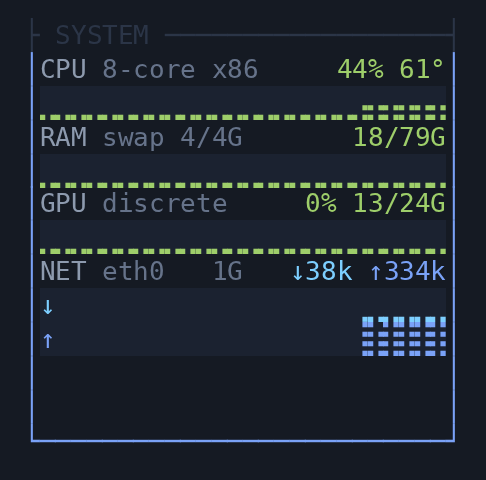
The middle slot is the identity: the CPU model and thread count, the GPU model, the interface name and its link speed, swap once any is in use, and a disk's mount point. It is the first thing dropped when the rail is narrow — the label says which gauge this is and the value is the reading, so an identity that pushed either off the row would cost more than it tells you. It elides whole words, never mid-token.
CPU, RAM, GPU and DSK colour by load: ok under 50%, attention from 50,
danger from 85. A gauge at rest still draws a one-dot baseline, because an idle
machine is not a dead feed.
NET#
A row taller than the rest, and the only gauge whose colour means direction
rather than severity — a saturated link is the machine working, never a warning.
↓ (incoming) is drawn in info and ↑ (outgoing) in accent, each on its own
trace row led by its arrow, so the pair still reads on a monochrome terminal.
Silence draws as silence. Throughput has a real zero, unlike a CPU, so anything under 4 KiB/s is drawn as an empty row rather than a baseline: ssh keepalives, mDNS and ARP keep a few hundred bytes a second moving on every interface that is up, and drawing that as traffic made an idle rail look like a busy one.
Both directions share one autoscale peak, floored at 64 KiB/s so a quiet minute
is not amplified into a mountain range. Sharing it is deliberate — a flat ↓
under a full ↑ is the picture of an upload, and scaling each against its own
peak would fill both rows and throw that comparison away. The exact rates are on
the head row, so the traces carry shape and direction rather than magnitude.
Which interfaces appear is [ui] net: all by default —
every link that is up and carrying something, plus the default route whether it
is busy or not, capped at three — auto for a single one, or an explicit list. Loopback, bridges and veths are left out of the automatic modes because
their bytes are counted again on whatever they egress from; naming one draws it
anyway. The name only appears once there is more than one, the way GPUs are only
numbered on a multi-GPU box.
DSK#
One row, and no trace. Every other gauge is a series; a disk is a level with no history — the daemon publishes none, because a filesystem does not visibly move across the two and a half minutes the window holds. A second row would be a flat line drawn once per disk, and three disks would spend six rows on it.
The mount is the identity, and unlike every other gauge's it is never decoration:
two disks with their mounts dropped are two identical rows. So it is cut rather
than abandoned, and cut from the left — /work and /media/archive
agree on everything but their last segment, so …/archive is what identifies it
and /media/ would not.
Capacity is used/total in one unit taken from the total, in the binary units
df -h prints — 3.5/3.6T rather than four digits of gigabytes. Used is total
minus available, not minus free: the blocks a filesystem reserves for root
are not space a build can have, which is how df reports it too, and it is why
the number can sit above df's "Used" column.
On a Mac, check it against df -h /System/Volumes/Data, not df -h /. The
gauge says 73% where df -h / says 9%, and df is the one being misleading: /
is the sealed system volume, a dozen gigabytes by design, while the space is
spent on the data volume beside it. Both are volumes of one APFS container which
they are sized and filled by, so the row is the container — the disk that can
actually fill — and the data volume's own percentage is the one it matches.
A mount that did not answer in time keeps its last reading and is drawn faint
rather than in the colour that reading earned. A statvfs on a filesystem whose
server has gone away blocks uninterruptibly, so the daemon gives the sweep a
deadline and rests a mount that misses it; 99% full and a minute out of date is
news about the clock, not an alarm about the disk.
Which mounts appear is [ui] disks: all by default —
every real disk, largest first, capped at three — auto for the filesystem
holding / alone, or an explicit list. tmpfs, container layers and network
mounts are left out of the automatic modes: a tmpfs is RAM the RAM gauge
already counts, an overlay is the image under a container rather than a disk that
can fill, and a network mount's capacity belongs to a machine with a rail of its
own. Naming one draws it anyway.
Opening a monitor#
This is the one part of the left rail the cursor cannot walk, so it is keyed
rather than entered: C-b S puts htop on the stage, C-b Y whichever GPU
monitor the machine has (nvtop, then nvidia-smi, rocm-smi, radeontop, and
a line saying why there is nothing if none is installed). Clicking a gauge does
the same, and resolves by walking the gauge list rather than dividing the row by
a constant — the gauges are no longer all the same height. NET and DSK open
the system monitor rather than one of their own: there is no network or
filesystem pane yet, and htop is still the honest answer to "what is using
this".
CHANGES#
The workspace's git status, live, on the right. The box title carries the three
facts that change what you would do next: CHANGES (6) · main ↑2↓1, or
CHANGES (6) · main · REBASING while a sequence is running — you cannot push
mid-rebase, so the sequence displaces the arrows.
The footer names the branch as well, but it names the workspace's, in one line shared with everything else on screen — it is the first thing cut on a narrow terminal and it is gone entirely in layout mode. The title is where "which branch am I about to commit this to" is asked, so the branch is repeated beside the file list. It is also the only part of the title with no bound, so on a narrow rail it is the part that gives way: cut to what the counts and arrows leave, and dropped rather than shown as a stub.
The list is flat with headings in it, and the headings are rows the cursor can
sit on: enter on Unstaged or Staged diffs the whole section. Conflicts
come first and a conflicted file is never also listed as ordinary work, because
s on a conflict would commit the markers.
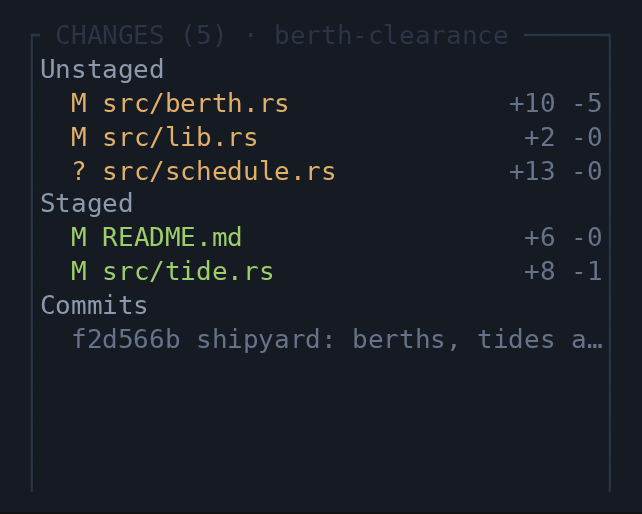
The status code is pinned and only the path marquees — a row whose M slides
away has stopped saying what happened to the file.
The verbs follow the selected row. That is the point of the table: the rail used
to offer s stage with a commit selected, and nothing at all with a conflict.
| row | keys |
|---|---|
| unstaged file | s stage · x discard · d diff |
| staged file | u unstage · d diff |
| conflicted file | o ours · t theirs · a resolved · d diff |
| a commit | d show |
| always | c commit · C stage all and commit · p push · g git menu · r refresh · ? keys |
p push is drawn only when the branch is actually ahead. x discard is the one
verb on this rail that asks first, because it throws away the only copy of an
edit; the box opens with no selected. c opens a one-line prompt with the
staged summary under it (3 staged file(s), or nothing staged — this will fail,
which is more useful than refusing).
The full git model — what a status code means, how the scan is refreshed, what each route can refuse — is Git.
The stage#
Whatever the cursor last staged, titled STAGE · name. Which pane that is is
this client's choice: two people looking at one project can look at different
panes in it. With no choice made it follows the workspace's own default.
While the stage has the keyboard every key goes to the program, which is what
makes it a terminal and not a preview. Three things still reach the workbench: the
Alt layer, the prefix (twice sends a literal one through), and C-b PgUp /
C-b PgDn for the pane's scrollback, which only the daemon has.
Mouse. Clicks and drags are forwarded to the pane in the pane's own coordinates, whether or not the program asked for the mouse — the daemon is parsing that program's output and is the only thing that can decide, so it drops what was not wanted. The wheel over the stage is scrollback; over a rail it moves that rail's cursor without taking focus, because you are looking, not choosing.
Selection. Dragging paints a selection over the composed screen, not over a pane, so it copies whatever is under it — a rail's rows, a diff, a file. The drag is confined to the region it began in, so straying into a neighbouring column still yields a clean rectangle. Selection is linear, not rectangular: a line that runs off the right edge continues at the start of the next, and trailing blanks are trimmed. Over a file being read, the line-number gutter is skipped, so what you paste is code rather than code with a column of numbers welded to it.
Releasing copies via OSC 52 — which is what works over ssh with no display
server — and flashes copied 3 lines. Inside tmux the sequence goes out twice,
plainly and wrapped in tmux's DCS passthrough, because stock tmux drops a bare
OSC 52 and the copy then went nowhere at all, silently.
alt-drag selects over a program that grabbed the mouse (vim, less);
shift-drag bypasses butai entirely and gives your terminal emulator its own
selection.
Paste. Bracketed paste is on, so a pasted run arrives as one event and is sent
as a paste rather than as keystrokes — a program that asked for the markers gets
them. Text goes wherever text is being typed: an open prompt first (flattened to
one line, so a pasted branch name cannot silently become a different one), then a
file buffer in edit mode, then the pane. With nothing staged it says nothing on
the stage.
alt-v pastes the image on your clipboard: it is re-encoded to PNG, written
into the workspace's scratch directory, and its path pasted where typing would
have gone — which is what an agent CLI can actually open. The read happens on the
machine you are sitting at, so it works over ssh. On a Linux box with no display
server it refuses immediately and says so, rather than hanging for seconds on an
X11 connection attempt.
Size. The client tells the daemon the pane's exact rectangle, and that is the one measurement that crosses the wire for drawing. It is page-dependent: on the DOCKER page the pane is the logs column, not the whole band.
Links#
A URL drawn anywhere on the screen is a link. Two ways to follow one, because the terminal's pointer and this client's keyboard are two different things:
The pointer, through your terminal. Every URL is marked up as an OSC 8 hyperlink as the cells are painted, so hovering underlines it and your terminal's own gesture opens it — cmd-click in iTerm2 and Ghostty, ctrl-click in GNOME Terminal and Windows Terminal, ctrl-shift-click in kitty. butai keeps mouse tracking on, so a plain click is a click in butai and the modifier is what tells the two apart; that is your terminal's rule, not butai's.
A terminal that does not implement OSC 8 discards the sequence and shows the
text, which is the normal outcome for one that has never heard of it. tmux
before 3.4 is the case worth knowing: it drops the sequence, so inside stock
tmux the link is plain text no matter what the outer terminal can do. [ui] links
= false turns the mark-up off for a terminal that gets it wrong.
The keyboard, through the picker. f — or C-b f from a focused pane —
lists every URL on the screen as it stands, in reading order, each one once.
enter opens it on the machine this client is running on; y copies it. With no
browser here — an ssh session with no display server, which is where a TUI
usually lives — the title says so and enter copies instead. The copy is OSC 52,
so it lands on the clipboard of the machine you are sitting at.
What counts as a link: http, https, file, ftp, ftps, ssh, git,
ws, wss, mailto, and a bare www. host, which gets https://. A trailing
full stop, or a closing bracket that nothing opened, is left out — so (see
https://example.com/a). links the address and not the punctuation around it.
javascript: and data: are deliberately not links.
In the browser client the same map is read, and the same rules — the port in
web/src/logic/links.ts is tested case for case against the Rust one, because
two clients that disagreed about what a URL is would be a bug report about
whichever one you happen to be using. What differs is who acts on it: a canvas
has no terminal underneath to hand the address to, so the stage hit-tests the
map itself. Hovering underlines the link and shows it as a tooltip; clicking
opens a tab. A program that asked for the mouse keeps its clicks, and there it
takes ctrl or cmd — the rule kitty and iTerm2 use, so the gesture is the same
one. alt and shift still force a selection, as they do everywhere else. The
whole grid is a pane there, so every row is joined; there is no picker, because
the pointer and the hover are always available in a browser.
A URL too long for the row. Inside the stage the rows are joined before they
are scanned, because a pane's wrapping is the program's own — so an address that
runs off the right edge and continues below is one link, and opens whole. The
chrome is not joined: everything the client lays out itself truncates rather than
wraps, and splicing two rows there would invent an address. The signal is the
last cell of the row being filled, which is what a wrap leaves behind — unless
the row below begins a link of its own, which is a new address rather than the
rest of one. That second rule is not a refinement, it is the common case: $ echo
https://… fills a narrow pane's row exactly and the shell echoes the same URL
underneath, and without it the two joined into that address written twice. What
can still be got wrong is a program that ends a line exactly at the right edge
and then prints unrelated prose.
BOOTH#
alt-0, or the chip at the far left of the tab bar. Every project on every
connected machine, the selected one's live screen, and whether each machine is in
trouble. It is the only page that spans daemons, which is why it takes the rails'
columns: the left rail would list one workspace's agents beside a column listing
everyone's.
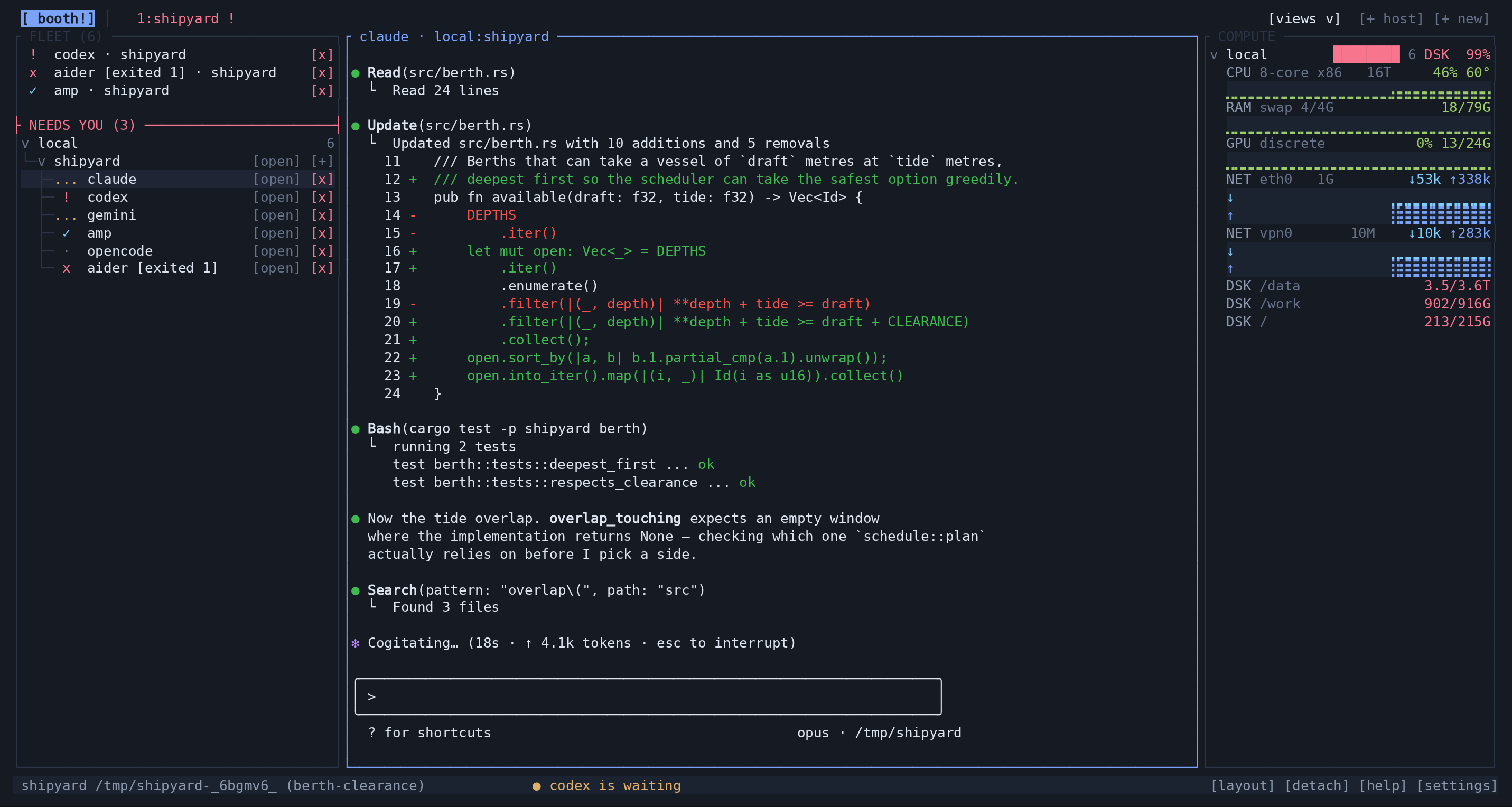
On narrow terminals, meters shrink and project buttons shorten to [+].
Wider columns spell out the preferred agent, such as [+ claude].
It is a list of projects that happens to contain agents, and that is a change
from what it was. The rows used to be built by walking the agent list and
emitting a header whenever the workspace changed, so a project with nothing
running in it produced no rows at all — the one page listing every project on
every machine could not show you the ones you had not started anything in, which
are exactly the ones you want to start something in. They come from the machine
and project lists now, so notes above has a row and so does mini, which is
connected with nothing open on it.
The NEEDS YOU tray gathers agents needing attention above the fleet, even
when their projects are folded. It ranks questions first, then unread crashes,
then unread completed turns. Its fixed height keeps the fleet from shifting
when attention changes; when empty, it says nothing needs you.
The tray holds copies, so each agent keeps its place in the fleet. Clicking a copy selects its original row and preview; unfold its project or machine first if that row is hidden. The previewed agent stays highlighted in both lists even when the keyboard is focused on its pane.
Each chat has an [x] button in the fleet and in NEEDS YOU. It ends that chat
on its own machine; the tray button also works when the project is folded.
The terminal follows the existing x key behavior and closes immediately;
the web client uses its existing confirmation dialog.
The fleet list is grouped by machine and then by project, and its order is a pure function of identity — daemon, then tab order, then spawn order. It reads no agent state at all, so a row is where it was an hour ago and a status change redraws a glyph in place. (Sorting by urgency was measured and rejected: rows travelled ~174 positions per ten sampler ticks at 24 agents, and hysteresis only brought that to 169.) Projects are grouped by id rather than by name: two machines routinely have a project of the same name open, and one machine may have two, so the name is left to the drawing.
Each agent has a simple status indicator in a fixed three-cell field:
| indicator | means |
|---|---|
. → .. → ... |
working — loading dots advance every 1.2 seconds |
! |
waiting for you |
✓ |
a finished turn |
· |
idle |
x |
exited; a nonzero exit is shown in danger colour |
The markers keep their meaning throughout a session; age does not change them. A faint box-drawn spine connects machines to projects and projects to agents, with branches ending at the last visible sibling after folding.
The status indicator is ours. An agent's own status glyph — Claude Code's ◐/✳ — is
whatever it wrote into its terminal title, and it is pinned between the sprite
and the name here exactly as the AGENTS rail pins it. Only the name marquees.
The middle column is a live pane, not a picture of one. The keyboard starts on
the fleet, so j/k walk rows. Clicking an agent in the fleet or NEEDS YOU tray
selects its preview and immediately hands the keyboard to that pane. Clicking
a machine or project selects it and keeps the keyboard on the fleet. tab,
a click on the pane, or starting an agent also hands it to the pane, and everything you type from then on is that agent's. alt-w or
alt-esc takes it back — it has to be one of those, because once the pane has
the keyboard esc and tab are the agent's too.
The cursor walks rows, machines and projects included, because starting a session belongs to a project and so does going somewhere. The agent under it is derived rather than tracked beside it — two indices that have to agree are two indices that eventually do not — and on a project row the pane shows the agent in it that most needs you, so walking the fleet is a fly-over of each project's screen rather than a cursor that keeps pointing the pane somewhere it has left. A project with nothing running previews nothing, and a machine row previews nothing: there is no honest answer and the stage says so.
Clicking an agent row only moves the cursor. [open], right-aligned on it, is
the one thing on that row which travels: it goes to that agent's workspace on its
machine, which moves the tab bar out from under you. enter is its keyboard
spelling. This split exists because a click that meant "let me look at this" was
throwing the whole workbench onto somebody else's project. [open] is dropped
when the column is too narrow for it, and then the two-step click is the only way.
That rule is the whole list's, project rows included: text looks, buttons act.
A project's name puts the cursor on the project — which points the middle column
at the agent in it that most needs you — and travels nowhere. It briefly did
travel, on the grounds that a project row had nothing to preview; it has one, so
that was the same accidental route off the page in different clothes. enter is
the keyboard route to a project or agent; both have an explicit [open] button.
Nothing here takes
you somewhere by accident: every route out is a field you aimed at, or a key.
a starts a session in the project the cursor is in, and A picks the type
whatever the project says. They are the rails' own two verbs, bound here
unchanged — what moved is only what they act on, from the tab you are looking at
to the project the row names, which on this page are routinely not the same
project or even the same machine. The page does not move, because a button
that started something and threw the tab bar onto another machine is the bug
that made agent rows two-step in the first place.
What does move is the cursor, and the keyboard with it. Once the new agent
has a row in the fleet, the cursor goes to that row — which points the middle
column at its screen, because the preview follows the cursor — and the focus goes
to the middle column, so the next thing you type is the first thing that agent
reads. Nothing else changes: same page, same tab, same machine. A project that was
folded opens on the way, because a folded project has no agent rows at all and the
fold would otherwise be the one thing standing between [+ claude] and the pane
it promised you — an extra sprite in a strip is not an answer to "start an agent
and put me in it".
That is two steps rather than one because it has to be. The client's fleet is fed by the daemon's event stream, so the row does not exist at the instant the spawn returns, and the cursor cannot be put on a row that is not there — it stayed on the project row instead, where the preview picks the agent that most needs you, which for a brand-new one (working, nothing unread, so not asking for anything) is never it: you got a fly-over of the project's first agent and no way to type into the one you had just started. So the pane id is held and the cursor lands the moment the row appears. It is held for three seconds and no longer, and only while the page is still BOOTH and the cursor has not moved: an agent that dies before it is ever listed must not leave a cursor move armed to fire at whatever you are doing a minute later.
[+ claude] on the row is the same button under the pointer, and it names what
it will start for the reason the AGENTS rail's does: a button that spawns on a
single click with nothing in between is the only place you can see what that
click is about to do. It falls back to [+] and then to nothing as the column
narrows, exactly as [open] already degrades.
What a project starts is its own [agents] autostart, then the client's
default_agent pin, then the picker. Two steps and no third: a project that
wants codex says so in the file it already has for exactly that, which lives
with the project, travels to the machine it runs on, and is shared with whoever
else opens it. A client-side pin keyed by directory would be none of those three.
z folds the machine or project the cursor is on; Z folds every project at
once, leaving an index of every machine, every project, and what is running in
each. They are the DIFF page's fold keys and its marks — v open, > folded —
because this workbench already has a fold idiom and a second one for the same
concept is drift. A folded project hides its chat rows without adding a duplicate
status strip to the header. z on an agent folds the
project it is in and takes the cursor up to that row, which is the only move that
leaves the cursor on something you can still see.
Folding is a filter over the order and never a second ordering: a folded row is simply not emitted and the rows around it keep the positions they had.
The compute column shows one summary line per collapsed machine: its name, agent count, a meter where space allows, and the busiest resource reading.
For example, a collapsed machine can show 3 agents · RAM 42% or 4 agents · CPU 97%, depending on which resource is busiest.
Clicking the summary expands the existing SYSTEM gauge stack, including
history traces, hardware details, interfaces and watched filesystems. Clicking
that expanded block collapses it again. An away machine shows away and never
expands stale telemetry. The wheel scrolls in machines, and j/k stay with
the fleet.
Double-click a machine or project name in FLEET to fold/unfold its children.
A single click selects and previews. Double-click means two nearby presses on
the same machine/project within 400ms. Keyboard input, scrolling, dragging and
other controls cancel the pending pair. The chevron and z retain their
single-press folding behavior. Agent names give focus to the preview; [open]
and enter still travel to the agent's workspace. Explicit [+], [x] and
[open] buttons keep their own actions.
What the headline names: rates first, and fullness only when it is an
emergency. CPU, RAM and GPU are rates — what the machine is doing this
second, numbers that come back down on their own. Disk fullness is a level:
the same number all day, moved by nobody but you. The column took the plain
worst of all four for a while, and the level won permanently — the shipping
disks = "all" watches the three largest local filesystems, so one 3.6 TB media
drive that had been 90% full for a year held every row at DSK 90% in danger
red while the CPUs idled. A column whose only job is answering which of these
machines is busy answered "the disk", forever. Reported as the compute column
reading high, and it was.
The original insight is kept rather than reversed — a box at 30% CPU with a full root filesystem is in trouble and its CPU number says it is fine — it just has to be full enough to outrank what the machine is actually doing, which is 95%. That is well clear of the 85% where the colour ramp starts painting red, because 85–95 is exactly the band a well-used drive lives in permanently; and it is where ext4's 5% root reserve runs out, so it is where ordinary writes start failing rather than where they are getting close. Below it, expand the machine to inspect each watched filesystem and its mount.
A stale mount is out of the headline entirely. A filesystem nobody has heard from is not news about how full it is, and a hung NFS export reporting 99% from an hour ago must not paint a working machine as an emergency. The expanded stack still prints the number it last saw, faint — the same judgement the SYSTEM rail already makes.
x ends the thing the row is. On an agent that is the session, wherever it
lives, and it does not ask, for the reason the rail's x does not: an agent is
a process whose transcript is on disk. On a project row it is the workspace and
everything running in it, so it asks — in the tab bar's own box and its own
words, because that is the same act reached from somewhere else.
[x] is that press under the pointer, right of [+], and it is drawn on the
cursor's row and nowhere else — and only while the fleet has the keyboard. That
is the tab bar's rule for its own [x] and it has the same reason: a button that
ends a workspace has to be one you aimed at, not one sitting under a row you were
passing, and a cursor belongs to the column being steered. It costs four cells,
which on this column is a sprite or half a name — worth spending on the row you
are looking at and not on the ten you are not.
Because those four cells are spent at the right end, whether the row is the
cursor's decides where every control left of it sits. The drawing and the
hit-test therefore ask one function whether a row is the cursor's, rather than
each spelling the condition out. They did each spell it out, and drifted by
exactly those four cells: with the cursor on a project row and the keyboard on
the middle column, [+ claude] was drawn flush right with no [x] beside it,
while a press on it resolved four cells to the left — so clicking the button you
could see opened the close-workspace confirm, or folded the project.
Every control on the row keeps its place before any of them is spelled out, so a
narrow column draws [+] [x] rather than [+ claude] and no way to close: [+]
starts exactly the agent [+ claude] would, and [x] has no shorter form. What
neither of them ever costs is a sprite — a folded project that cannot say what is
in it is a row you have to unfold to read.
m or the right button opens that row's menu — Close agent, Close others, Close all
agents, the same three the AGENTS rail offers, acting on the row's own project
rather than on the tab you are looking at. Neither asks first, for the reason the
rail's x does not: an agent is a process whose transcript is on disk. On a
project row the menu is the tab bar's own, against its chip; a machine row has
none, because there is nothing generic to offer about a host here that the tab
bar does not already offer about its tabs.
Pasting with the cursor still on the fleet says click the preview or Tab to it
to type there rather than silently landing in an agent on another machine.
The fleet's bare keys are j, k, enter, tab, x, m, a, A, z and
Z, and no more. It used to be the first six, and the reason given was that the
rest of the lettered rail verbs are about lists this page does not draw — a new
agent belongs to a project, and BOOTH is not in one. That sentence stopped being
true when the rows became projects. It survives in a better form: a new agent
belongs to a project, and here the cursor is always in one.
FILES and DOCS#
alt-o (and alt-e, which names the page rather than the space and does not
toggle back) for FILES; alt-m for DOCS, which is the same widget over a
listing filtered to markdown, READMEs, and every directory except target and
node_modules. They keep separate cursors and separate open buffers, so
switching between them does not lose your place in the other.
The browser is a trail of columns#
Every directory on the path from the workspace root to where you are is a column of its own, side by side, with the row you came through still marked in each — the Finder's column view, in a terminal.
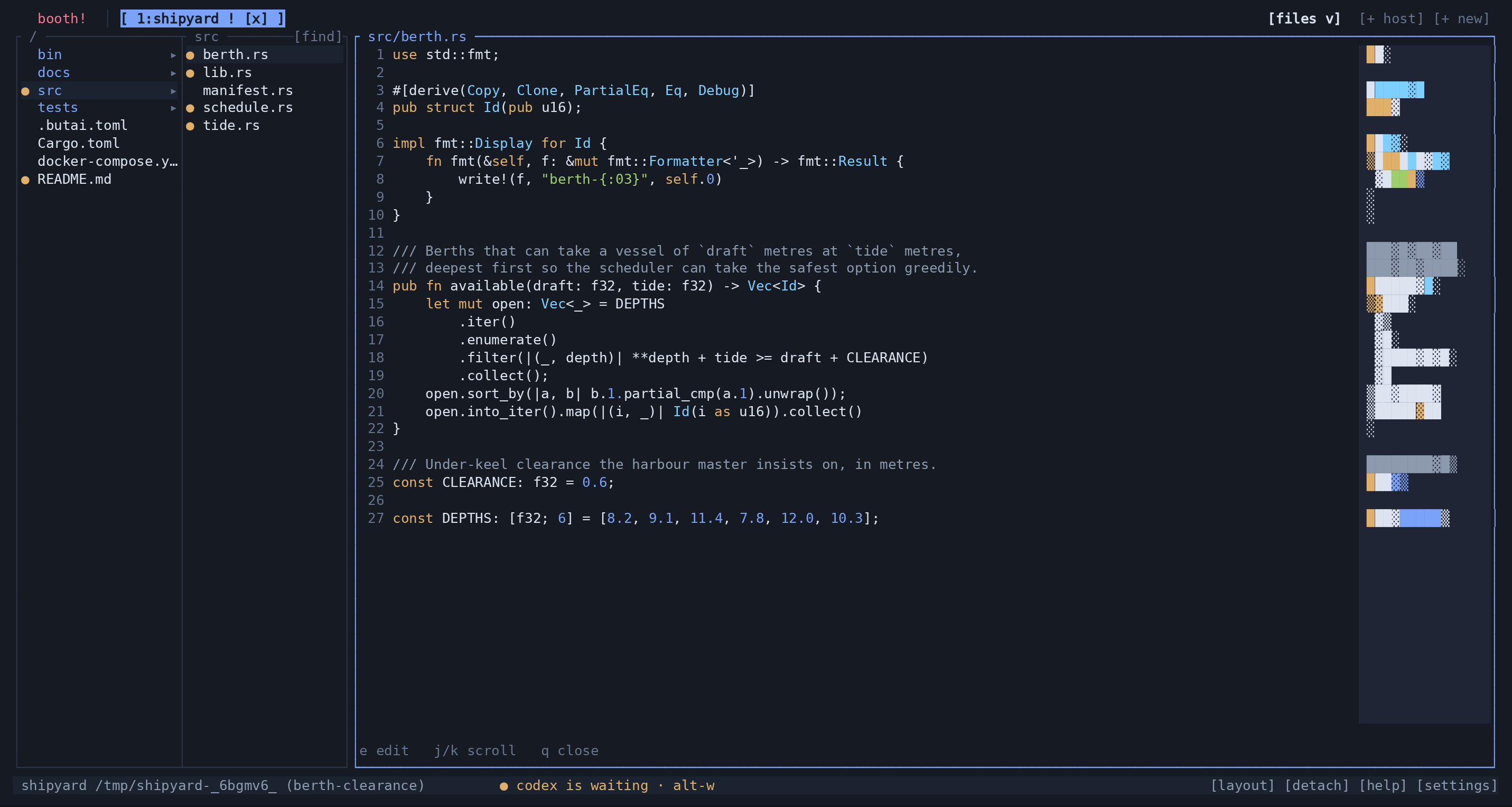
It was one directory and one cursor, and descending replaced both. That made every folder a one-way trip you could only reverse by remembering you had: nothing on screen said where you were or how you got there. A trail says both at once, and where you are is the shape of the whole thing rather than a line of text you have to read.
A column is 20 cells. The browser grows one at a time and stops at half the
band, so a trail walked six deep still leaves the file the room — and on a
terminal too narrow for a browser and a file at once, the browser goes to
nothing rather than squeezing the thing you came to read. The trail scrolls left
as it grows, so the column you are working in is the one that stays on screen;
← past the left edge pans the other way. [find] is on the top border and each
column wears its own directory's name (docs for the root on DOCS).
A row is ● in amber when git sees a change in that file, or in something under
that directory that this page shows — so on DOCS a folder holding nothing but
changed code stays unmarked, and the dot always leads somewhere. Then the name,
then ▸ if it is a folder, on the edge the next column opens from.
There is no .. row. There used to be, because descending read as a one-way
trip and something had to say up existed. The trail says it — the directory you
came from is the column to the left, still listed — and ← walks back to it, so
a row whose only meaning is "the column immediately left of this one" is a row
you have to learn not to click. backspace still works, and so does ← when the
trail does not reach where you are.
The columns to the right of the cursor are kept, not dropped, so ← then →
is two local moves and no round trip — over ssh that is the difference between
browsing and waiting. Moving the cursor is what drops them, and that is the point
rather than a side effect: those columns are what the old selection contained.
The filter is the daemon's (?filter=docs), not each client's: the marker and
the rows are one decision, and splitting them is what used to let a trail of dots
end in an empty box.
The file, and the minimap beside it#
The right column is the open file with a line-number gutter and syntax colours,
titled with its path and a * when it has unsaved changes — the asterisk goes
where the eye already is rather than into a status line further away.
Down its right edge is a minimap: the whole file as sixteen cells of texture, with the rows you are looking at marked on it. Sixteen cells cannot hold a line of code and it does not try — each cell stands for a rectangle of the file, drawn as one shaded block whose density is how much ink is in that rectangle and whose colour is what that ink mostly was. A comment block is a muted slab, a run of strings is green, an indent is the blank left edge. At that size indentation is the signal, which is exactly what makes a file recognisable from across the room. Click anywhere on it to jump, and what you clicked lands in the middle of the window rather than on its top row — you aimed at a shape in order to read what is around it.
It takes all sixteen cells or none: below a floor the scale stops meaning anything, and a minimap you cannot read is sixteen cells of code you no longer have. On a narrow terminal, or with the trail walked several deep, the file column keeps the file.
The bottom row is either a notice, … truncated; download to see the rest when
the daemon stopped at its cap, or the keys:
| File mode | Footer actions |
|---|---|
| Read-only | ← / → navigate, space preview, q close |
| Viewing | e edit, j / k scroll, q close |
| Editing | Ctrl-s save, esc stop editing |
j k |
walk the column; once the cursor is on the file, scroll it |
← h |
up a level — the column to the left, or out of the file back into the browser |
→ l |
into the selected directory, or open the selected file |
space |
peek: read the file the cursor is on without handing it the keyboard, so the next j walks to the next name |
enter |
open — the same read, and the keyboard goes to the file |
backspace |
up a directory |
/, [find] |
search the workspace |
e (or i) |
edit the open file |
C-s |
save |
esc |
stop editing |
x |
delete the file the cursor is on, after a confirm box. Refused on a directory |
q esc |
close the page. A changed buffer refuses once; the second press discards |
space and enter both put the file in the viewer and differ only in where they
leave the keyboard. That is what makes one of them a peek: a way to read down a
directory a file at a time without committing to any of them.
x is the only key on this page that destroys something, and it is the only one
whose damage git cannot undo — the CHANGES rail's x puts a file back to what
the index holds, and this one leaves nothing to put back. So it asks: the box
names the path and opens on "no", the same shape the discard box has. Deleting
the file that is open in the right column closes it too, and the listing is read
again afterwards, which is what repaints the ● markers around the gap.
The buffer lives in the client. That is a deliberate trade: the daemon used to hold it so unsaved edits survived a detach, and what replaces the guarantee is the refusal above.
Searching is the daemon's — it walks the workspace and returns hits, so it is as fast over ssh as locally, and a hit opens the file at its line.
GIT#
alt-r. The repository over time and across branches, which is a different
question from the CHANGES rail's "what did I change just now". Three columns:
REFS above, the commit graph below it, and whatever the cursor names drawn as a
diff on the right.
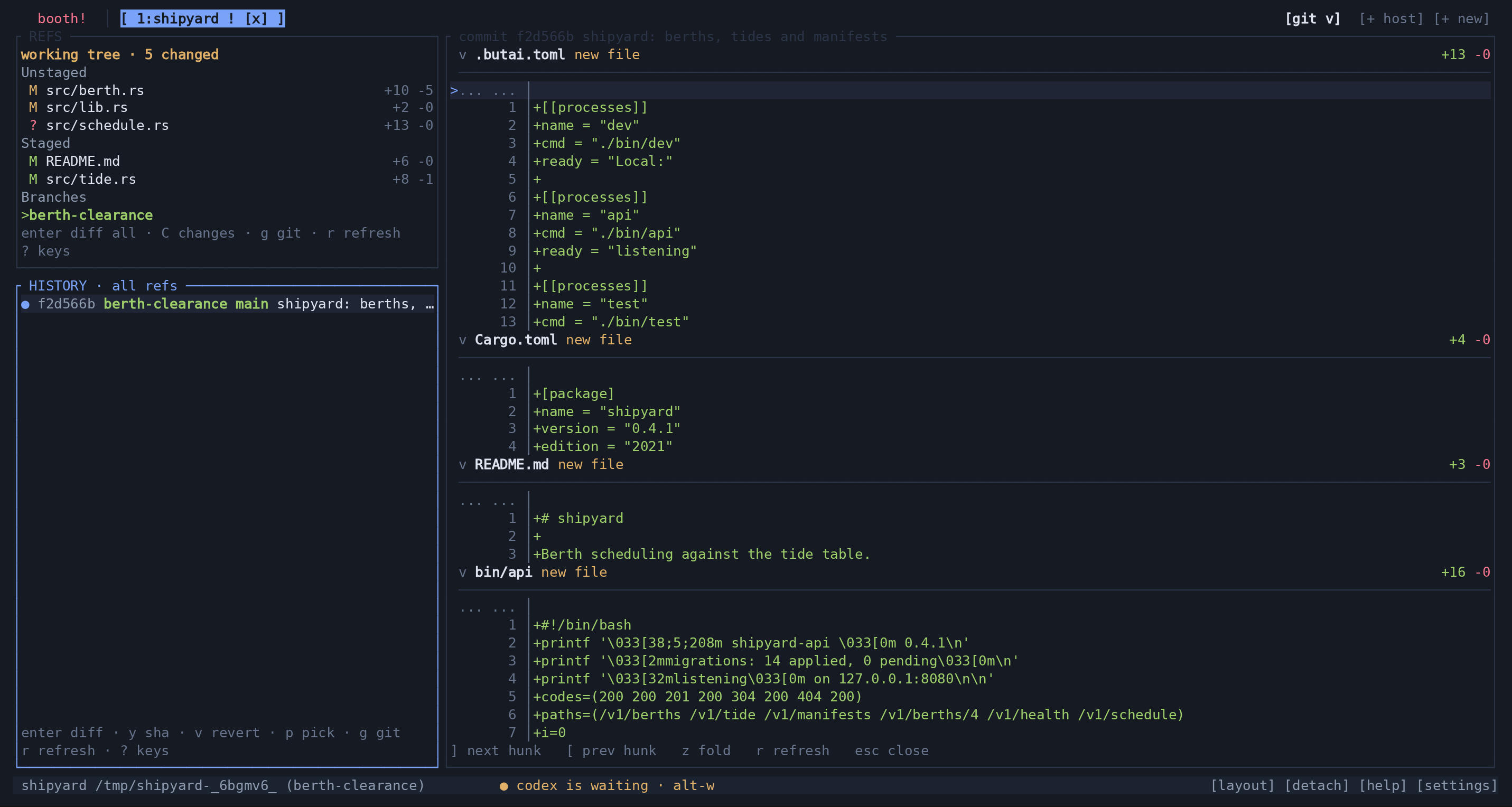
REFS lists the working tree first — working tree clean, or working tree ·
6 changed in amber, whose enter takes you back to the CHANGES rail where
staging lives. Then branches, remotes, tags, stashes and worktrees. A branch
carries ↑2↓1 drift, > and bold when it is the one you are on, and ⇢name
when it is checked out in another worktree. A worktree row is tagged here for
the checkout you are looking at and open when it is already a workspace.
HISTORY is one page of the log, newest first, in topological order, with real
parent edges drawn in up to six lanes. Lanes are computed over the whole page
rather than the visible slice, so a lane a merge opened above the fold still
passes through the rows below it, and the shape does not change as you scroll.
Below 30 columns the lane column is dropped and the list draws plain. Each row is
the sha, any ref chips (tags in accent, remotes faint, branches in ok, bold when
HEAD is here), then the summary. The box title names the scope: HISTORY · all
refs or the ref you narrowed to.
Nothing here mutates on enter. enter reads — it scopes the history to a
ref, opens a commit, or shows a stash. The verbs that act are lettered and each
row offers only the ones that would work on it.
tab |
REFS → HISTORY → the commit body, which joins the cycle only once it holds one |
j k, PgUp PgDn, home end |
move |
enter |
scope, or read |
c m d |
checkout · merge · delete a branch |
x |
drop a stash, remove a worktree, delete a tag |
y v p |
copy the sha · revert · cherry-pick |
f |
fetch, on a remote row |
esc |
widen the scope back to every ref; in the body, close it |
g r ? |
the git menu · refresh · keys |
A branch checked out elsewhere offers no c, and neither does a remote branch —
checking one out properly means creating a local branch that tracks it, and a
verb that would only ever fail is not advertised. g is the menu here, which is
why this page has no g-for-top.
Empty states are honest about which one they are: REFS says not a git
repository once it has loaded and loading… before, and the body says
Enter on a commit to read it, loading…, or no workspace open.
DOCKER#
alt-c — containers take c because alt-d is detach. The list column holds
this project's compose stacks and their containers; the logs column beside it
follows whichever the cursor is on.
A stack whose compose working directory is at, under or over the workspace's cwd
is "mine". Stopped stacks are dropped; when anything belongs to this project,
everything else is dropped too, because a page listing every container on the
machine is a machine inspector and this is a workbench. When nothing matches it
falls back to showing them all, so the page is never mysteriously empty — and
with nothing running at all it says no running containers.
A multi-container stack is a ▾ header with its containers under it. A
one-container stack is its container, so its header wears the container's own
dot — ● running, ○ not — rather than being listed twice. The right of a
header carries up or 3/5.
j k |
move |
enter |
follow the logs |
r x |
restart · stop — these stay in the rail rather than taking the stage, because docker restart exits in a second |
s |
a shell in the container, which goes on the stage with the agents |
q esc |
close the page |
The logs are an ordinary process pane running docker logs -f. There is no
docker client in the client and no docker message on the wire — which is exactly
why this page works unchanged against a daemon on another machine.
The diff#
Reached from the CHANGES rail (d, or enter), and left by staging anything
else. It sits on the stage with the rails still beside it, so j/k on the rail
walks files and the diff follows.
] [ |
next · previous hunk |
space |
stage the hunk — or unstage it, on a staged diff |
v |
line-select; space picks a line, enter applies the picked ones, v or esc backs out |
x |
discard the hunk |
j k, PgUp PgDn, g G |
scroll |
r |
refresh |
q esc |
close the page — not the session |
A commit's diff is history: it offers navigation and nothing else, rather than
verbs that would fail. enter does nothing in read mode rather than quietly
meaning "the whole hunk", which is the one mistake a partial-staging tool must
not make.
SETTINGS#
alt-s, or [settings] in the footer. This client's own configuration, as a
page you enter, change and leave. A groups column on the left, the settings
themselves on the right.
Every row names the TOML key it writes, drawn faint beside the label, so the page
and the file are never two vocabularies for one setting. There is no Save button:
a change applies and is written when you make it, and toml_edit rewrites one
key and leaves every comment and unrelated table alone.
| group | rows |
|---|---|
| APPEARANCE | [theme] name, and the themes directory as a fact |
| AGENTS | [general] default_agent, and the daemon's configured agent types |
| WORKBENCH | [ui] left_rail, right_rail, procs_height, system_height |
| MACHINES | [general] remote_auto_attach, then a block per machine, then add a machine |
| KEYS | the prefix, and how many keys are bound and how many came from your config |
| ABOUT | version, the config path, the socket path |
Moving the cursor onto a theme in the open list applies it to the whole workbench, live, and leaving without choosing puts the old one back. That is the feature a modal cannot have, because a modal covers the thing you are trying to look at — and it is why this is a page. The fifteen colour roles are drawn as swatches under the APPEARANCE rows and nowhere else.
j k |
rows, or options inside an open list |
tab S-tab |
groups — only while nothing is expanded |
enter |
open a list, or choose from it — or, on one of MACHINES' action rows, do what it says |
space |
toggle |
- + (and h l, ← →) |
adjust a size |
0 |
back to automatic |
r |
in MACHINES: re-read the blocks, and ask every connected daemon its version again |
esc q |
close the list first, the page second |
A size row cannot be typed past the floor a drag stops at: both gestures go through the same clamp, so a rail you can type is a rail you could have dragged to.
MACHINES#
The one group that is not only a view of the file. Its first row is
[general] remote_auto_attach and its last is add a machine, which opens the
same machines picker alt-h does; between them is a block per machine this
client knows of — the ones in the tab bar and the [[remote]] blocks that are
not, which is the list nothing else in the client puts in one place.
A machine's name heads its block, and its value is what that machine is doing
and what it is carrying while it does it: connected — 3 agents, 2 workspaces,
away — last seen with 3 agents, 2 workspaces, connecting…, or not
connected — <the last dial failure>. The counts stay when a machine goes away,
and say what they are: it is still running everything it was running, and the
last numbers it sent are a better answer than nothing at all.
Under the name, indented two columns, are version and where. version is
the build the daemon named at its handshake — 1.3.0, or 1.3.0 — 1.3.1
available when this client's own update check has seen a newer one, or
1.3.0 → 1.3.1, restarting once it has accepted an update and is going down.
"Newer" there is this client's answer, and a daemon follows the release
channel configured where it runs, so a machine on the dev track can be ahead of
a stable client that thinks it is behind. where is the ssh destination, or the
socket already forwarded here. A machine that is not answering has no handshake
to read, and its version says unknown rather than dressing that up.
Then the two or three things you can do about it. These are not settings and have no value to report — an ssh takes several seconds and a toggle that flips back when it fails is worse than a row that plainly says what it will do — so their right-hand column is the sentence describing the act, and the footer offers the row's own verb rather than the word "act".
| row | offered on | what enter does |
|---|---|---|
update |
any machine that is answering | On another machine, POST /v1/update: that daemon fetches its own build, replaces its binary and restarts, and a confirm box names the machine first. On this one it is the client's own update — the same question :update asks — because a local daemon is spawned from the binary you are running. |
disconnect |
a machine in the tab bar, on an ssh this client opened | Kills the forward, drops the machine out of the tab bar, and removes its [[remote]] block. Both halves, in that order: a disconnect that left the block behind came back on the next attach and read as having quietly undone itself. The far daemon keeps running. |
connect |
a configured machine that is not here, with a destination to dial | The same dial the machines picker runs, arguments and remembering and all. The row goes to connecting… on the press rather than waiting for the ssh to land. |
forget |
a configured machine that is not here | Removes its [[remote]] block and nothing else, so it stops being dialled every morning. Nothing on the machine is touched. |
The rows a machine does not get are the point of the shape. An unreachable
machine gets no update and no disconnect, because both are requests to a
daemon that has to answer them and a row that can only ever report a refusal
reads as broken. A machine reached over somebody else's ssh -L gets a link
row saying on a forward of its own instead of a disconnect, because there is
no ssh of ours to kill — the same rule the machines picker follows. The daemon
on this machine gets update alone: it is never dialled and never dropped.
update on another machine is refused unless that machine opted in.
[update] allow_remote lives in the daemon's own config.toml and is off by
default; the refusal is the ordinary answer rather than a fault, so the flash
names the machine and the key instead of reporting a 400. See
[update] and
Remote machines for why the default is
what it is.
What keeps up on its own, and what r is for. Which machines are connected
and what each is carrying is rebuilt whenever the fleet moves, so the head rows
follow a machine going away or coming back without being asked. The two things
that do not are the [[remote]] blocks and the versions. The blocks are read
off disk, and each connected daemon is asked for its build by opening a control
connection and taking the version off its handshake — there is no REST route
that reports one — and both happen once, the first time you open the page, and
after that only on r. A daemon's version changes when it restarts, and half a
dozen socket round trips a frame to watch for something that happens twice a
week is not a trade worth making.
disconnect and forget re-read the blocks themselves, so a section still
listing a machine whose block you just removed cannot happen. r is bound in
this group and nowhere else on the page: every other group is a view of a file
this page has just written, so a refresh key on one would be a key that does
nothing.
HELP#
?, C-b ?, or [help]. butai's own reference, as a page. A contents column of
twelve topics, the topic beside it, page 4 of 12 at the bottom of the contents
and more below at the right of the verb row when there is more to read.
Nothing here is a file. The topics are compiled into the binary, so the page opens with no daemon in the loop, reads the same over ssh as locally, and has no path, no save and no editor. The prefix key is substituted at draw time, so the page never prints a key that is a lie on a changed config.
j k |
scroll |
space f · b, PgDn PgUp |
a screen at a time, with two rows of overlap |
home end (g G) |
top · bottom |
tab n l → · S-tab p h ← |
next · previous topic |
esc q, or [help] again |
close, back to the page you came from |
Clicking a topic in the contents does what tab would; clicking a tab, a space
or [help] on the two bars is the other way out — both bars stay the workbench's
on this page and on SETTINGS.
Overlays#
Exactly one at a time, by construction: an overlay is a question the interface is asking, and two questions at once has no sensible answer. It takes the keyboard and the pointer — a click on one of its rows picks it, and a click anywhere outside dismisses. There is one renderer and one hit test for all of them, so a click lands on the line it looks like it lands on.
Lists — j/k, enter to choose, esc/q to dismiss, wheel to move.
| list | opened by | notes |
|---|---|---|
| agents to spawn | A, alt-enter, a with nothing pinned |
d pins the highlighted one |
| branches | b, C-b b |
the current one is marked |
| machines | alt-h, the machines button |
connected ones first, marked *; then ssh aliases; then a row to type one |
| which machine | opening a workspace with more than one connected | |
| a folder | n, alt-n, [+ new] |
plus [open this folder], [new folder], .. |
| the git menu | g, C-b g |
two levels: groups, then a group's rows with .. back |
| a row's menu | right-click, or m |
agent, process, or workspace tab |
The git menu is seven groups — Branch, Remote, Stash, Integrate, Fixup,
Worktree, Tag — each reachable by a letter. Mid-sequence it offers only the
way out: continue, abort, skip, and nothing that would tangle a stuck repository
further. push --force-with-lease, reset --hard and abort confirm before
their picker; deleting a branch, a tag, a stash, a remote or a worktree confirms
after it, because only then is there a name to put in the question.
Prompts are a single line with a caret, a title, and a subtitle under it: a
commit message, a branch name, a tag, a worktree branch, an ssh destination, a
new folder's name, or the : command prompt. They claim every printable key,
q included, so nothing can steal a character out of a commit message.
Confirmations spell out what is about to happen, then no and yes, with
no selected — the keystroke that throws work away is never the one that opened
the box. y answers directly, n dismisses, tab/j/k toggles, enter
takes the selected answer.
Find (/, alt-/, [find]) is a prompt and a list in one box, because they
are one action: every keystroke narrows the list. It says searching… while a
query is in flight — a grep over a large tree is not instant, and a list that has
not caught up otherwise looks like a list with no matches — and (nothing found)
when there is genuinely nothing. A hit reads path:line preview and opens the
file there.
LAYOUT and zen#
alt-l turns the arrows into rail resizing and says so in the footer:
The footer shows the current rail width and section height. Press esc to save.
←/→ move the focused rail's width by two cells, ↑/↓ the focused
section's height. Which rail the arrows widen follows from which section you are
in, so the two questions have one answer. AGENTS grows by taking from PROCESSES;
PROCESSES takes from SYSTEM, so AGENTS stays where you last put it; CHANGES is
the whole right rail, so only its width moves. Rail growth is capped so the stage
keeps its minimum — otherwise growing a rail on a narrow terminal trips the
fallback that collapses both, and the key appears to do the opposite of what it
says. esc or enter leaves and writes [ui], but only if something actually
moved.
Layout is workbench-wide, not per project: one gesture moves every tab, which is why the HUD says so.
alt-z is zen — both rails collapse to four-column status strips. The tab bar
is untouched, so the spaces button is still there to leave by; it used to take
the view rail with it, which meant zen changed the layout twice over. The left
strip is one marker per agent then per process:
A! |
waiting |
A~ |
working |
A* |
finished |
A |
idle |
Ax |
exited |
P✓ P✗ P· |
a process ok or done · failed · anything else |
The right strip is the change count, C6. There is no spinner in zen: the strip
is a glance, not a display, and animating a four-column strip would repaint the
screen for something nobody is reading.
States you will hit#
Empty rails. The cursor stays at zero and the verbs that act on a row do nothing rather than reporting a failure about a pane that was never named. An empty CHANGES rail draws its box and no verb row at all, so there is nothing to click.
No repository. The CHANGES box draws with its plain CHANGES title and no
rows. On the GIT page, REFS says not a git repository — once it has loaded;
before that it says loading…, because "this repository has no branches" and
"the answer has not arrived" are different facts.
No daemon. Starting with nothing to connect to fails with no daemon to
connect to, or no daemon answered (…) naming each socket it tried. One
unreachable machine among several is not fatal — a forwarded socket whose tunnel
is down is the ordinary case — so the others come up and the failures are flashed.
If the connection drops later the session ends with daemon connection lost, and
a lost event on one of several daemons flashes daemon: … and leaves the rest
running. A machine reached over ssh goes further: its forward is rebuilt and it
comes back in the tab it had, saying <host> went away — reconnecting and then
<host> is back. See Remote machines.
A daemon of a different build. The handshake carries the server's version; a mismatch flashes both numbers. Not fatal — the wire is additive — but it is the whole difference between "butai is broken" and "restart the daemon".
An exited pane. An agent keeps its row, greyed, with exit or exit 3 in
danger, until x dismisses it — its final output is still one enter away. A
process that exits non-zero keeps FAIL(2) for the same reason. If the pane the
stage was streaming goes away, the stage empties rather than the client wedging
on a dead connection. Restarting a process allocates a new pane id, and the stage
lets go of the old one rather than showing an empty box until the next tab
switch.
An agent needing attention. Four places say so at once, at four altitudes:
WAIT on its rail row, n! on the AGENTS row of the spaces menu, ! on its
workspace chip and on the booth chip, and ● codex is waiting in the footer —
with · alt-w appended on a page that has hidden the AGENTS rail, because there
the footer is the only thing naming which agent it is. On BOOTH it also appears
on its fleet row. The daemon rings a bell through to your terminal too.
A workspace whose directory disappeared — an unmounted share, a dropped VPN,
a hung NFS mount. Reads, stats and git calls on it block in the kernel and cannot
be interrupted, so the daemon runs all of them off its actor thread; the rest of
the workbench keeps repainting and every other workspace stays usable. The calls
that do touch it fail or hang, and the footer names them (tree: …, diff: …).
A key that is bound to nothing here. A prefix followed by an unbound key says
M-y is not bound rather than being silently swallowed — an unbound key after a
prefix is a typo, and saying so is how you find out the binding you thought you
had is not there. A key bound to something from the free-pane model butai
dropped says why: not in this workbench: the stage holds one pane.
A mistyped [keys] entry is a warning flashed at startup and listed on the
SETTINGS page, not a refusal to start.
The terminal client and the browser client#
Both clients use the daemon's REST API for workspace data and its framed protocol for a live pane. The terminal client draws terminal cells; the browser client draws its own React interface and mounts a canvas-based screen for the pane. Its HELP page describes the browser's available keys.